

Backups, export and import
Your libraries live on your phone or computer. If you lose it, it breaks or you delete things by mistake, you only get back what you have in a backup. It is a good idea to make them from time to time.
To start, open the menu (on a phone, the three bars at the top left) and go to “Backups”.
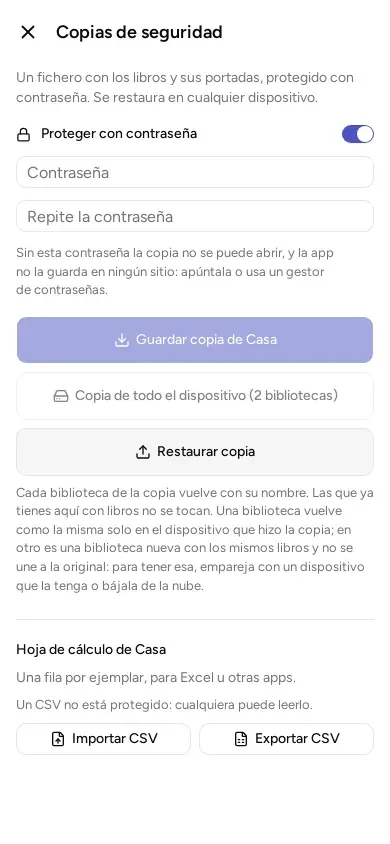
Save a backup
Section titled “Save a backup”A backup is a file with your books and their covers.
- Go to “Backups”.
- Leave “Protect with a password” on. It is on already.
- Type a password of at least 8 characters and repeat it.
- Tap “Save a backup of” and the name of your library.
- Choose where to save the file: a folder, a USB stick or your Google Drive, for example.
When it finishes, the app says how many books, copies and covers it saved.
Write the password down. Without it nobody can open the backup, and the app does not keep it anywhere. Keep it on paper or in the password program you use.
You can remove the password with the “Protect with a password” switch. The app warns you that anyone who finds the file will be able to read it: the names, what you own and who has what.
Save all your libraries at once
Section titled “Save all your libraries at once”If you have more than one library, the “Back up the whole device” button saves them all in a single file.
Restore a backup
Section titled “Restore a backup”- Go to “Backups” and tap “Restore backup”.
- Choose the file.
- If it has a password, type it and tap “Unlock and restore”. If you get it wrong, nothing is restored and you can try again.
Each library in the file comes back with its name. The ones you already have on your device with books in them are left alone.
One thing worth knowing.
- If you restore the backup on the same device that made it, the library comes back as it was.
- If you restore it on another device, it appears as a new library with the same books, and it does not join the original.
To have the original library on a new device, pass it from another device that has it (see Share at home) or download it from your account, if you have one.
If the app says the backup was made with another version of the app, update the app and try again.
Your list in a spreadsheet
Section titled “Your list in a spreadsheet”On the same screen, the “Spreadsheet” part lets you move your list to Excel, LibreOffice or a similar program, or bring in a list you already have.
Export
Section titled “Export”Tap “Export CSV” and choose where to save it. A CSV is a file that Excel and other programs can open, with one line for each copy (each one you have of something, on paper or digital). The app says how many lines it wrote.
The CSV has no password: anyone who finds it can read it. It also does not carry everything: it does not save the type (book, film…), nor the covers, nor series, nor what you marked as read, nor the stars.
Import
Section titled “Import”Tap “Import CSV” and choose the file. The first line of the file must be the names of the columns. These names are in English, written exactly like this:
| Column | What it holds |
|---|---|
title |
The title. It is the only required one. |
subtitle |
The subtitle |
authors |
Who wrote it. If there are several people, separate them with a semicolon: Margaret Weis; Tracy Hickman |
publisher |
The publisher |
published_year |
The year, in digits |
language |
The language, with its two-letter code: es for Spanish, en for English… |
isbn13 |
The ISBN, the number every book has next to its barcode |
format |
The format, with one of the words in the table below |
owner |
Whose it is |
quantity |
How many items. If you put nothing, one |
location |
Where it is |
acquired_on |
The purchase date, like 2026-10-16 |
In the format column you must use these words:
| In the app | In the CSV |
|---|---|
| Hardcover | hardcover |
| Paperback | paperback |
pocket |
|
| Ebook | ebook |
pdf |
|
| Audiobook | audiobook |
| Other, or no format | other, or leave it empty |
What happens when you import:
- Everything comes in as a book. You can change the type of each one afterwards from its page.
- If the ISBN on a line is already in your library, the book is not repeated: a copy is added to it.
- Lines with errors are skipped and the rest is imported. When it finishes, the app says how many new books there are, to how many books you already had a copy was added, and how many lines were rejected, with the number of each.
- If there is a column the app does not know, it ignores it.
You can try first with a new library, to see how it turns out before you mix it with yours.
© 2026 Kosmotheka
Kosmotheka is free software: the app and the server are under the AGPL-3.0-or-later, and the operation spec is under the MIT licence. The name and the logo are not covered by the licence.
kosmotheka.com · Trademark policy · Privacy policy · info@kosmotheka.com