

Share at home: pair devices over Wi-Fi
You can have the same library on several devices at home: your phone, your partner’s, a laptop. To do that you have to pair them. Pairing is connecting two devices so they pass changes to each other.
You do it once, with a QR code (the square of dots you read with the camera), over your home Wi-Fi. You need no account and no internet, and the data does not go through any other computer: it goes straight from one device to the other.
Each device keeps the whole library. When one changes something, the other receives it.
Before you start
Section titled “Before you start”- Both devices have the app, and it is open.
- Both are on the same Wi-Fi, the one at your home. Your phone’s mobile data will not work. It is best not to use the guest Wi-Fi (the one given to visitors, with a different password): on that one, devices often cannot see each other.
- If you have a VPN or privacy program that changes your connection, turn it off while you pair. If you do not know what that is, you do not need to do anything.
Pair two devices
Section titled “Pair two devices”Call “A” the device that already has the library and “B” the one that will receive it.
On A:
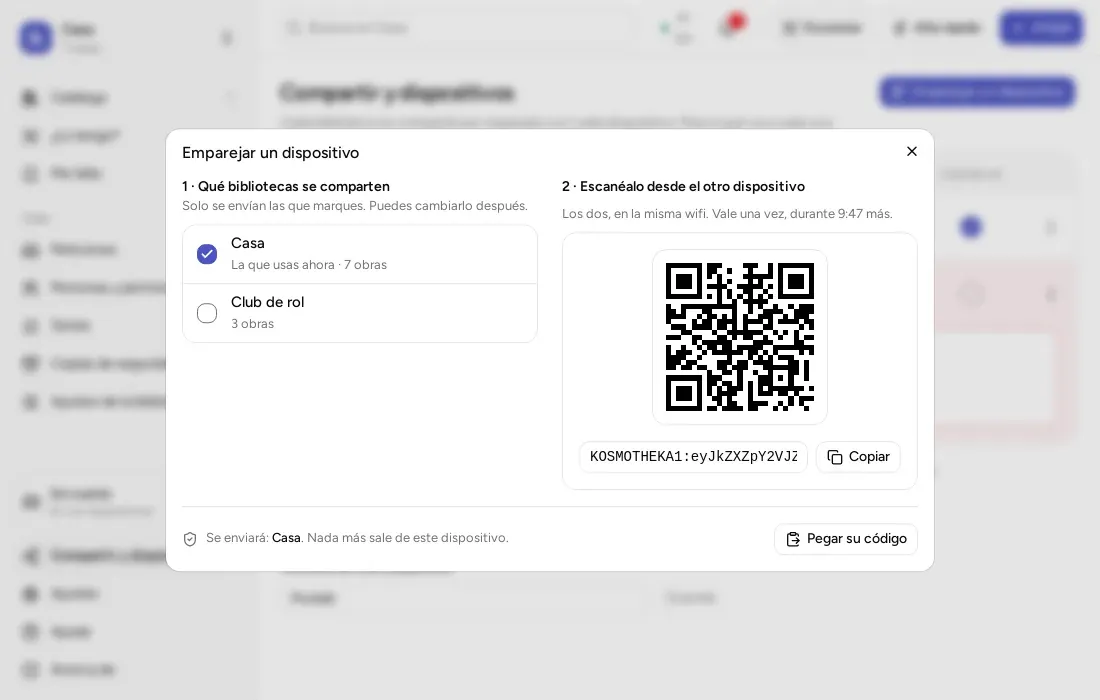
- Open the menu (on a phone, the three bars at the top left) and go to “Sharing and devices”.
- Tap “Pair another device”. On a computer it is called “Pair a device”.
- Tick which libraries you want to share. Only the ones you tick are sent.
- A QR code appears. Under it is the same code written in letters and numbers. It works only once, for 10 minutes.
On B:
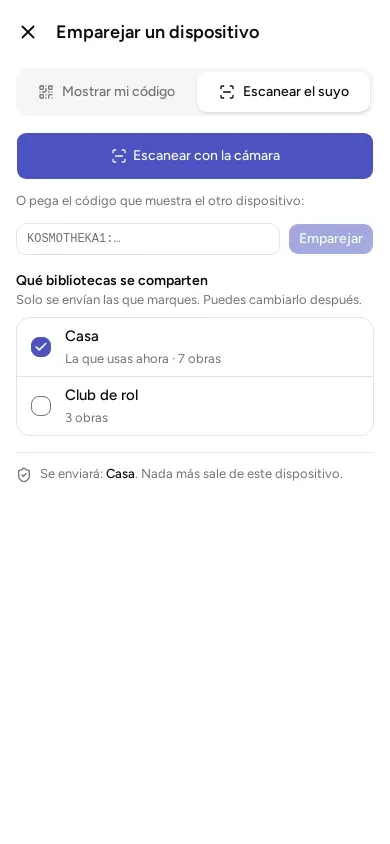
- Open the same place: the menu, “Sharing and devices” and the pairing button.
- Tap the option “Scan theirs”.
- Tap “Scan with the camera” and point the camera at the code on A.
- If B is a computer, it has no camera. On A tap “Copy”, next to the code. On B tap “Paste their code”, paste the code into the box (the way you copy and paste a text) and tap “Pair”. On a phone, that box is just under the camera button.
When it finishes, B shows a message like “Paired with Laura’s phone. Received 12 changes, sent 3”, and the library appears on B. A “change” is each thing someone has added or edited in the library. A shows “Paired with” and the name of B.
Say whose the new device is
Section titled “Say whose the new device is”If you administer the library (that is, you can change everything in it), the app also asks “Whose is” the new device. Pick a person from the list, or “Someone else” and type their name. What is done from that device will count as done by that person.
You also choose what that person can do in each library. That is called their role. If you do not pick another, it will be Editor.
- Administrator: can do everything, including deciding who comes in and what each person can do.
- Editor: can add and change things, and delete only what that person added.
- Reader: can see the library and ask for any changes they like, but not make them.
An administrator can change everything, including adding or removing people from the library. Give that role only to people you want to.
If you do not administer the library, the app asks you nothing.
If the library is in the cloud of another server
Section titled “If the library is in the cloud of another server”A library that reaches you by QR may be uploaded to the cloud of another server, which is not Kosmotheka’s official one. When pairing ends the app tells you: ““Club” is in a cloud that is not the official one of Kosmotheka: … runs it”. Your app does not connect to that server because you received the library: it keeps talking to your account’s server, or to none if you have no account, and the library is shared with you over the home network like any other. Only if you later sign in to an account on that server will your data go there; the app will warn you then too. The line stays in the library’s settings.
How changes are passed on afterwards
Section titled “How changes are passed on afterwards”The two devices update themselves when they are on the same Wi-Fi and the app is open. This happens when you open the app, when you change something and, while the app is on screen, every five minutes: a change can take up to five minutes to arrive. If one is away from home, it updates when it gets back.
Away from home
Section titled “Away from home”If you are together but without Wi-Fi, turn on the option to share internet (the “hotspot”) on one of the phones and connect the other to that network. Then pair, or pass the changes, as you would at home. It does not use your mobile data: everything goes between the two devices.
Changing which library goes to each device
Section titled “Changing which library goes to each device”In “Sharing and devices” you will see the paired devices, with a box for each library. Only what is ticked is sent. If you untick one, it disappears from that device the next time they update; on yours nothing changes.
You can also tap “Stop sharing” in “Library settings”. You can share it again whenever you like.
With “Unpair”, in the three-dot menu of each device, the two stop being paired. Nothing is deleted from your libraries: your books stay where they are. For changes to pass between them again, you will have to pair them again.
If in a library you cannot share, the app tells you to ask whoever administers it.
If it will not pair
Section titled “If it will not pair”- Check that both are on the same Wi-Fi and not using mobile data.
- Make sure the code is in view on A. If more than 10 minutes have passed, tap “The code expired: make another”.
- Turn off the VPN, if you use one.
- On Windows, if the antivirus or security program (the “firewall”) asks whether to let the app in, say yes.
- If the phone asks whether the app can use the “local network” (your home Wi-Fi) or “nearby devices”, accept.
- If nothing works, close the app on both and make a new code.
Some specific messages:
- “The other device cannot be reached. Is it on the same Wi-Fi, with the app open?”: they are not on the same Wi-Fi, or the app is closed on the other one.
- “The two devices run different versions of the app. Update both.”: update both.
- “The other device already has this one paired.”: on the other one, first use “Unpair” on this one and pair again.
If they do not update, nothing is lost: they will do it by themselves as soon as they see each other again.
© 2026 Kosmotheka
Kosmotheka is free software: the app and the server are under the AGPL-3.0-or-later, and the operation spec is under the MIT licence. The name and the logo are not covered by the licence.
kosmotheka.com · Trademark policy · Privacy policy · info@kosmotheka.com