

What leaves your device and what does not
Your books and everything else stay on your phone or computer. Your notes, your stars, whose each thing is and your backups do not leave it on their own. Without an account, the app only uses the internet to look up the details of what you add.
When you search for a book
Section titled “When you search for a book”When you search for a title or a code number, the app asks public online services, such as the catalog of the Spanish National Library. They only receive what you search for: the title you type, or the number of the code (for example, the ISBN). Never your list of books, your name or what you own.
The search runs as you type, after a very short pause. Like any web page, each service sees which internet address you are asking from (the one at your home). It also sees that the question comes from Kosmotheka and from which version of the app.
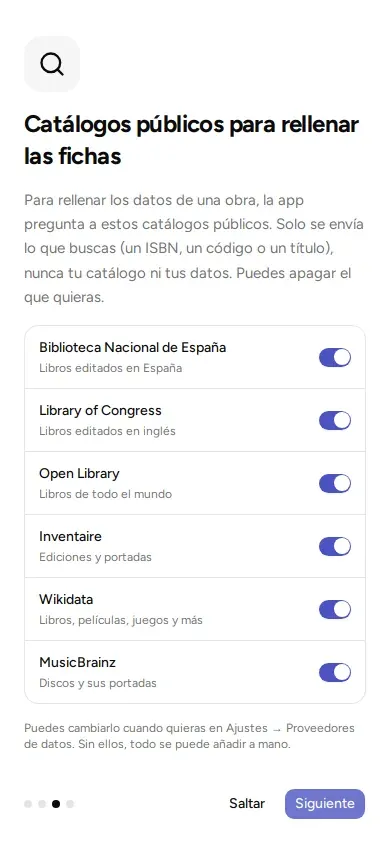
These services are on from the start. Each one can be turned off.
| Service | What it is used for |
|---|---|
| Spanish National Library | Books published in Spain |
| Library of Congress | Books published in English |
| Open Library | Books from all over the world |
| Inventaire | Editions and covers |
| Wikidata | Books, films, games and more |
| MusicBrainz | Records and their covers |
Other services ask for a key of your own, free, which their website gives you so you can use their data. You get it yourself. They are Google Books (books), GameUPC (board games), TMDB (films and series), RAWG (video games) and Comic Vine (comics). Until you put in your key, they are not used.
Where to change it. Go to “Settings”, “Data providers”. There you can see, for each kind of thing (books, films…), which services are used, turn them on or off, and put in your keys. If you turn them all off, you can add everything by hand.
Covers
Section titled “Covers”The cover image is downloaded from the service that has it and saved on your phone or computer. That service knows you asked for it.
The camera
Section titled “The camera”The camera only turns on when you tap the scan button. Images are read on your own device: they are not saved or sent anywhere.
The scanner is Google’s (it is called ML Kit and comes with the phone’s Google Play services). To know whether it works well, it sends Google technical data: the phone model, the system and app versions, and how long it takes or whether it fails. Never the images. None of that reaches us.
On Android, to read the barcode the app uses a piece of Google software that comes with the Google Play store. You can read its terms in the menu, under “About” and “Licences”.
Share at home
Section titled “Share at home”When you connect two devices to share (it is called pairing them, and it is explained in Share at home), the data goes directly from one to the other, over your Wi-Fi. It does not go through the internet or through any other computer. Only the libraries you tick are sent.
The people you share a library with see everything in it, including the names of the people and whose each thing is.
Backups and spreadsheets
Section titled “Backups and spreadsheets”The files you create, you keep wherever you like. If you upload them to an online service (Google Drive, for example), that service’s terms apply. The backup has a password; the spreadsheet list (CSV) does not. See Backups.
If you create an account
Section titled “If you create an account”The account is optional. If you create one and upload a library, that library also lives on a computer on the internet (your account’s server) that keeps it for you. Also, searches in some services can go through that computer. What it keeps, for how long and how to delete it is in the privacy page.
What the app does not do
Section titled “What the app does not do”- It has no ads.
- It does not measure how you use it or follow you.
- It does not sell or hand over data.
- It does not ask for any personal data to work without an account, apart from the name you type at the start. That name stays on your device and on those of the people you share with.
Deleting your data
Section titled “Deleting your data”- Deleting a library (in “Library settings”, “Delete library”) removes it from this device and from all the ones that share it. It cannot be undone. Before deleting, the app offers to save a backup. If you only want to remove it from this device and let the others keep it, use “Remove from this device”.
- “Reset this device”, in “Settings”, leaves the device as it was when the app was first installed.
- Uninstalling the app also removes its data from the device.
- The backups you have made stay where you saved them.
If you have any questions: privacy@kosmotheka.com.
© 2026 Kosmotheka
Kosmotheka is free software: the app and the server are under the AGPL-3.0-or-later, and the operation spec is under the MIT licence. The name and the logo are not covered by the licence.
kosmotheka.com · Trademark policy · Privacy policy · info@kosmotheka.com