

Your own: to read, reading, read, stars, favorites and "I want it"
Two people at home can have different opinions about the same book: Ana has read it and loved it, Hugo has it pending. That is why what you note about a work (whether you have read it, how many stars you give it, whether it is your favorite) is yours alone. If you do not remember what a work, a details page or a copy is, see Three words the app uses. It does not change what the others note.
Where you note it
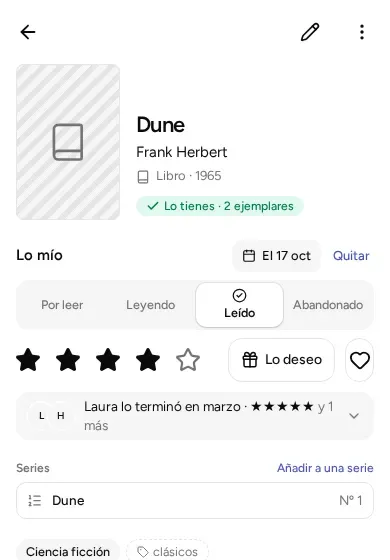
Section titled “Where you note it”Open the details page of anything. You will see a section called “Mine” with:
- Your status. Tap one and today’s date is set. To change the date, tap it. If you tap the same status again, it is removed.
- “Clear”, a button that appears once you have marked a status. It deletes everything of yours about that work.
- Your stars, from 1 to 5. If you tap the same star again, it is removed.
- “Favorite”, the heart.
- “I want it”, the gift. It is explained below.
Anyone in the library can do all this, whether they are an administrator, an editor or a reader: it does not change the library, only your part.
One thing is needed: someone must have told the app whose this phone or computer is. If not, “Mine” appears disabled, and it tells you that an administrator of the library (who can change everything) has to say so first. It is explained in Share at home.
The states change with the kind
Section titled “The states change with the kind”There are four states, and they have different names depending on the kind:
| Kind | States |
|---|---|
| Book, comic | To read · Reading · Read · Dropped |
| Board game | To play · Playing · Played · Dropped |
| Video game | To play · Playing · Finished · Dropped |
| Film, TV series | To watch · Watching · Watched · Dropped |
| Music | To listen · Listening · Listened · Dropped |
| Other | To do · Started · Finished · Dropped |
The names in the table appear when you look at the details of one thing, or at the list of a single kind. In a list that mixes kinds (the catalog with “Everything” selected, for example), the general names appear: Pending, In progress, Finished and Abandoned. “Started” is only the name of “In progress” for the kind “Other”.
Other people’s notes
Section titled “Other people’s notes”Below “Mine”, the details page shows what the other people in the library have noted: their status, their stars and their heart. If there are several, the first ones are shown, and “and 2 more” opens the rest. Remember that whoever shares a library with others sees what they note, just as they see yours.
In the catalog, next to the title, you will see a small icon with your status and, if it is your favorite, the heart.
“I want it” and “Missing”: they are not the same
Section titled ““I want it” and “Missing”: they are not the same”They look alike, but they answer two different questions.
- “Missing” belongs to the library: a work that is noted and of which nobody has a copy. It is seen under “Missing” in the menu at the bottom (on the phone) or in the left column (on the computer). A work goes to “Missing” if you note it without a copy, or if you delete its last copy. It stops being missing when you tap “I have it” on its details page and note a copy. It is explained in Copies, locations and whose each thing is.
- “I want it” belongs to you: you mark it yourself, on the details page, because you would like to have it. Each person marks their own.
The two things are independent:
- You can want something you already have (for example, so that another person at home gets it as a present).
- Something can be missing without anyone wanting it. Noting something under “Missing”, for example from “Do I have it?” with “Save to Missing”, does not mark it as “I want it”.
Where the wishes are seen:
- On the details page: “You want it”, “Hugo wants it” or “You and Hugo want it”.
- In the “Missing” list, a column called “Wishes” (on the computer) or, below the title (on the phone), says who wants it.
It is useful for gifts: whoever wants to get it right opens “Missing” and sees what the others want.
Filter by your own
Section titled “Filter by your own”A filter shows only what matches what you choose. Tap “Filters” and you will see “My status”: tick one or several statuses, or “Not marked” for what you have not touched yet, and the catalog shrinks to that. Below it is the switch “Only my favorites”. Each active filter appears as a box that you can remove with a tap, or all at once with “Clear filters”.
For the wishes there is the “Wishes” button (with a gift), which lets you choose “What I want”, “What others want” or both. “My status” only looks at what you have marked yourself, not at what the others have marked.
You can combine it with the kind, the genre or the tag. For example, “Books” plus “To read” tells you what you still have pending to read.
© 2026 Kosmotheka
Kosmotheka is free software: the app and the server are under the AGPL-3.0-or-later, and the operation spec is under the MIT licence. The name and the logo are not covered by the licence.
kosmotheka.com · Trademark policy · Privacy policy · info@kosmotheka.com