

Copies, locations and whose each thing is
The same book can be at home more than once: on paper, as an ebook, one for each person. Each one you have is a copy. A copy says what format you have it in, whose it is and where it is.
Dune, for example, can have two copies: a paperback that is Ana’s and sits in the living room, and an ebook that is Laura’s.
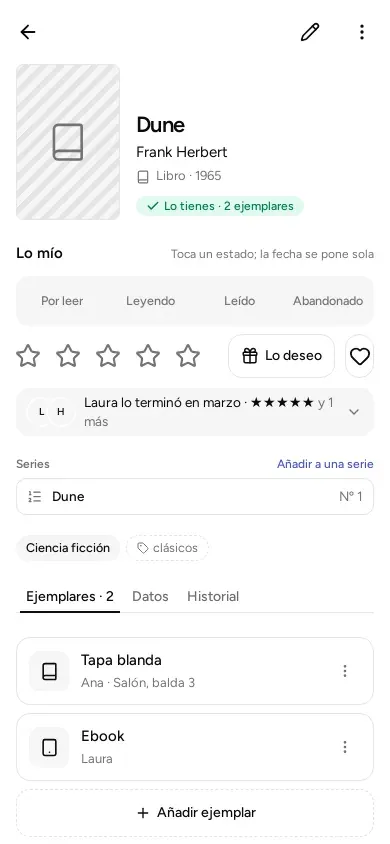
What a copy has
Section titled “What a copy has”- Format. It depends on the type:
- Book: Hardcover, Paperback, Pocket, Ebook, PDF, Audiobook.
- Comic: Hardcover, Paperback, Single issue, Digital.
- Board game: Box, Digital.
- Film: DVD, Blu-ray, 4K, Digital.
- TV series: DVD, Blu-ray, Digital.
- Video game: Physical, Digital. The platform is also asked for: the console or computer you play it on.
- Music: Vinyl, CD, Cassette, Digital.
- Other: only “Other”.
- Owner. Whose it is. Start typing a name and the app suggests the people in the library. If you leave it empty, the copy is “No owner”.
- Quantity. How many identical ones you have together. All the items in one copy share the format, owner, location and purchase date. If you have three identical ones in the living room, put 3 in a single copy. If one is somewhere else, belongs to someone else or is a different format, note it as a separate copy. In the app this field is labelled “Copies”, and when a copy has more than one item, the page says so (“3 units”); the “You have it · 3 copies” at the top counts the items.
- Purchase date. Optional.
- Location. Where it is, in whatever words you like: “Living room, shelf 2, row 3”. The app suggests the locations you have already used, so they do not end up written in three different ways. For digital formats (ebook, PDF, audiobook, films or games online…) there is no shelf: say where you have it, for example “Laura’s Kindle”.
Only the title is required. Everything else can stay empty and be filled in later.
Noting a copy when you add something
Section titled “Noting a copy when you add something”When you add a book, its page ends with a section called “Your copy”. You fill it in right there, before you tap “Save”.
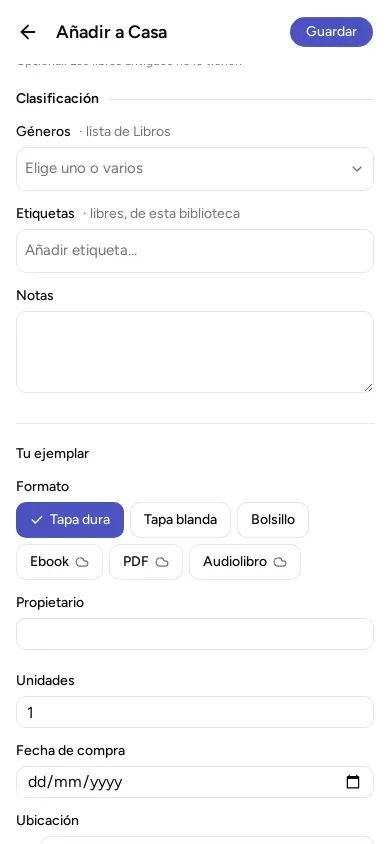
Adding another copy to something you already have
Section titled “Adding another copy to something you already have”- Tap the book in your list to open its page.
- Open the “Copies” section.
- Tap “Add copy”.
- Fill in the format, owner, quantity and location, and save.
Changing or deleting a copy
Section titled “Changing or deleting a copy”In the “Copies” section, each copy has a three-dot button (“Copy options”). That is where “Edit” and “Delete” are.
If you delete a copy, the book stays in your library: only that copy goes. To remove the whole book, use “Delete” in the menu of its page: the book and all its copies go.
Something you want and do not have
Section titled “Something you want and do not have”Anything you note without any copy (from “Missing”, with the “Add one” button on a phone or “Add” on a computer, or because you deleted all its copies) goes in the “Missing” list. When you get it, open its page and tap “I have it”: it adds a copy and it stops being missing.
The people in the library
Section titled “The people in the library”Owners are the people in the library (each with their own name). If you type a name that does not exist yet, the app notes it as a new person. You will see them in “People and permissions”, which is in the menu. Being the owner of a copy does not give a person permission to change the library: that is explained in Share at home.
© 2026 Kosmotheka
Kosmotheka is free software: the app and the server are under the AGPL-3.0-or-later, and the operation spec is under the MIT licence. The name and the logo are not covered by the licence.
kosmotheka.com · Trademark policy · Privacy policy · info@kosmotheka.com