

First steps: install the app and add your first book
This page takes you from installing the app to your first book. It takes about five minutes.
Install the app
Section titled “Install the app”- Android: the app is on Google’s store (Google Play), but for now only a few people who are taking part in a trial can install it.
- Computer, with Windows or Linux: coming soon.
The downloads page always shows what can be installed today.
Open it for the first time
Section titled “Open it for the first time”When you open it, a welcome appears with a few screens.
- Type your name. The first screen asks “What is your name?”. You cannot skip it. It is the name the people you share your libraries with will see. Your first library is created in your name, and you are its administrator: you can change everything in it. You can change your name later in “Settings”, which is in the menu.
- Read the other screens. They say that your library is on your phone or computer, how the barcode is scanned (on a phone only), which online services the details of books come from (you can turn each one on or off), and that you can share your library if you want. Tap “Next”, or “Skip” if you are in a hurry.
- Tap “Get started”.
If you want to see the welcome again later, it is in “Help”, with the button “See the welcome again”.
Add your first book
Section titled “Add your first book”Your new library is empty. You will see the message “My library is empty” and a button, “Add the first one”.
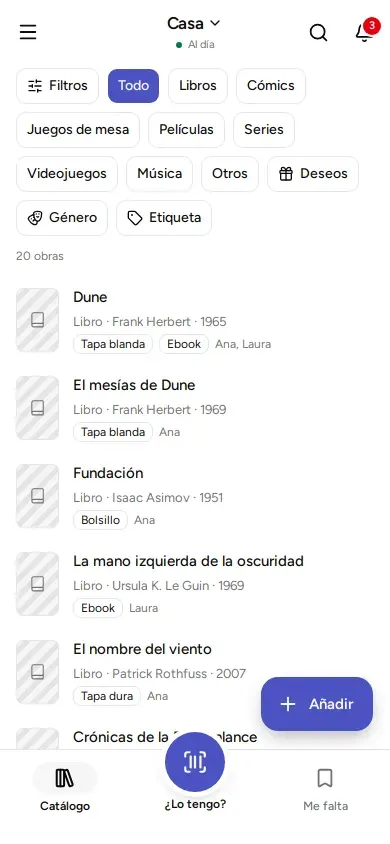
- Tap “Add”. On a phone it is the button at the bottom right. On a computer it is at the top right.
- Type the title, for example “Dune”. Results appear below as you type. You need an internet connection for this.
- Tap the result that is yours. A page opens with the details already filled in.
- Check the details. The only thing you must fill in is the title. Further down, under “Your copy” (each one you have of that book, on paper or digital), you can say what format it is, whose it is and where it is. The page Copies, locations and whose each thing is explains it.
- Tap “Save”. You will see the message ““Dune” was added to the catalog”, which means it is now in your library.
Tap the book in the list to see its full page.
If there is no connection
Section titled “If there is no connection”Tap “Add manually” and fill in the details yourself. You can complete them later.
What next
Section titled “What next”- Add by scanning, by ISBN or by searching for a title: all the ways to add.
- Share at home: so another phone or computer can see your library.
- Backups: so you do not lose anything.
© 2026 Kosmotheka
Kosmotheka is free software: the app and the server are under the AGPL-3.0-or-later, and the operation spec is under the MIT licence. The name and the logo are not covered by the licence.
kosmotheka.com · Trademark policy · Privacy policy · info@kosmotheka.com