

Add by scanning, by ISBN or by searching for a title
There are three ways to add something: scan its barcode, type its number, or search for it by title. In all three you start the same way: tap “Add”.
The app does not carry the details of books with it: it looks them up for you in online services, such as the catalog of the Spanish National Library. For that you need a connection.
The ISBN is the number every book has, next to its barcode. It starts with 978 or 979.
Scanning the barcode
Section titled “Scanning the barcode”On a phone only.
- Tap “Add”, then the camera button, to the right of the search box.
- If the phone asks for permission to use the camera, allow it.
- Point the camera at the barcode of the book. On books, it is the one that starts with 978 or 979.
If the shop has put a sticker over the barcode, the app will read the sticker and find nothing. Aim at the code on the book itself. If it will not read, tap “Type the number” (at the bottom of the camera screen) and type the small number printed under the code. The cross at the top left closes the camera.
To read the code with the camera you need an Android phone with Google’s store (Google Play). If you do not have it, type the number by hand.
Typing the number
Section titled “Typing the number”On a computer you cannot scan with a camera. Type or paste the number in the search box. If you have a barcode reader that plugs into your computer, that works too, but you do not need one.
- Type the number as it is printed, with hyphens or without. The app recognizes it when it is complete and changes the magnifying glass into a small barcode.
- Older books have a shorter ISBN, of 10 digits, which sometimes ends in an X. That works too.
- If the code does not say what kind of thing it is (a film, a game, a record…), the app asks you to pick the type and searches there.
Searching by title
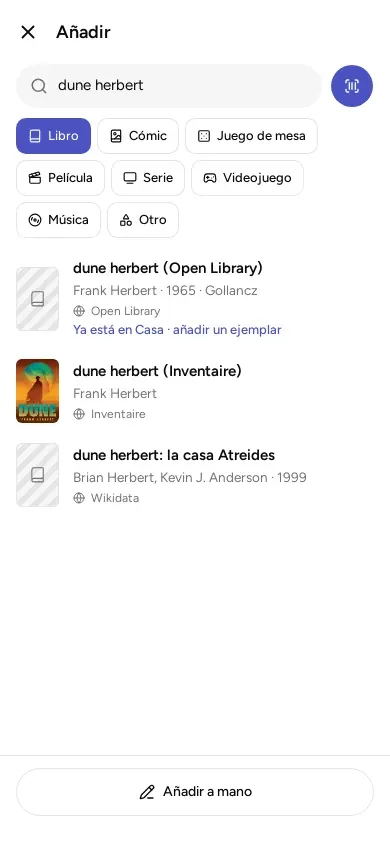
Section titled “Searching by title”- Pick the type of what you are looking for: Book, Comic, Board game, Film, TV series, Video game, Music or Other. “Book” is already selected.
- Type the title, from two letters on. Results appear as you type.
- Each result says which online service it comes from. Tap the one that is yours.
With “Other” nothing is searched anywhere: you add it by hand.
When what you were looking for appears
Section titled “When what you were looking for appears”A page opens with the details filled in. Check them before you save: online services sometimes get things wrong or leave gaps. Change whatever you need and tap “Save”.
If the result says “Already in My library”, you already have it. Tapping it opens its page, and from there you can add another copy (another one you have of it, on paper or digital).
When it does not appear
Section titled “When it does not appear”- If there is no connection, or the online services do not know it, tap “Add manually”. You can complete the page later.
- For comics, board games, films, series and video games, without an account and without a key of your own for those services, the search only uses Wikidata (an open encyclopedia of data), and for music only MusicBrainz (an open database of records). Covers or editions are sometimes missing. The app tells you with a message under the search box.
- Some services ask for a key of your own, free, which their website gives you so you can use their data. Google Books, for example, gives better results with one. You set it in “Settings”, “Data providers”. It is explained in What leaves your device and what does not.
Adding many at once
Section titled “Adding many at once”On a computer, the “Quick add” button (at the top, next to “Add”) lets you enter many numbers one after another. Each book that is found is saved straight away with the copy details you put below (format, whose it is, where it is). At the end it says how many were added, how many were already there and how many need checking.
If you already have your list in a spreadsheet, see Backups, export and import.
If in a library you can only look
Section titled “If in a library you can only look”In a shared library where you can only look (you are a “Reader”), instead of “Add” you will see “Ask to add”. Whoever administers the library decides whether to accept it.
© 2026 Kosmotheka
Kosmotheka is free software: the app and the server are under the AGPL-3.0-or-later, and the operation spec is under the MIT licence. The name and the logo are not covered by the licence.
kosmotheka.com · Trademark policy · Privacy policy · info@kosmotheka.com